Starbucks Partner Hours App Not Working? Complete Fix & Troubleshooting Guide
For many employees at Starbucks, the Starbucks Partner Hours app is the fastest way to check work schedules, swap shifts, and stay updated with store staffing changes.
But sometimes the app stops working.
Partners frequently report issues such as:
-
The Starbucks schedule app not loading
-
Login errors or authentication failures
-
Schedules not appearing
-
The app crashing after opening
-
Shift updates not syncing
If you’re experiencing these problems, the good news is that most of them can be fixed in just a few minutes.
This guide explains:
-
Why the Starbucks Partner Hours app is not working
-
The most common technical causes
-
Step-by-step troubleshooting solutions
-
Alternative ways to check your schedule if the app fails
What the Starbucks Partner Hours App Is
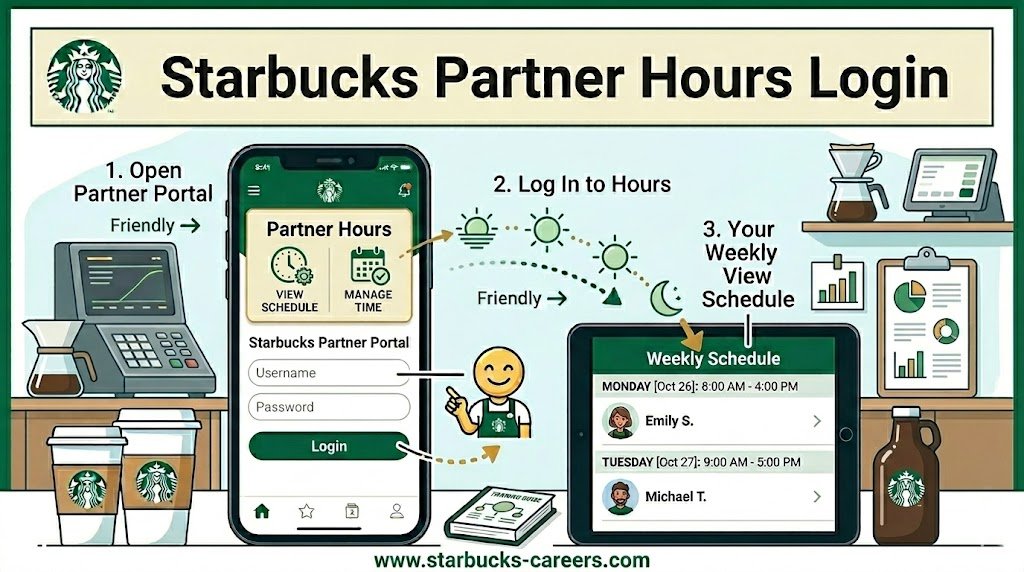
The Starbucks Partner Hours app is a mobile employee scheduling system used by Starbucks partners (employees).
It connects to Starbucks’ internal workforce management platform, allowing employees to access their work schedules and manage shifts.
Main Features of the App
The app supports several workforce management functions:
-
View upcoming shifts
-
Request time off
-
Swap shifts with coworkers
-
Check weekly schedules
-
Receive notifications when schedules change
Behind the scenes, the system integrates with Starbucks’ internal employee portal, often referred to as the Starbucks Partner Hub. Together, these systems form the company’s shift scheduling software ecosystem.
Quick Answer: Why the Starbucks Partner Hours App Is Not Working
The Starbucks Partner Hours app usually stops working because of:
-
Server outages or system maintenance
-
Outdated mobile app versions
-
Incorrect login credentials
-
Device compatibility problems
-
Internet network restrictions or VPN conflicts
Updating the app, restarting the device, clearing cache, or logging in again often fixes the problem.
Most Common Problems With the Starbucks Schedule App
Several technical issues can prevent the Starbucks employee schedule app from working correctly.
1. Starbucks Server Downtime
One of the most frequent causes is server downtime. Because the app connects to Starbucks’ internal workforce scheduling system, it depends on backend servers.
When those servers are unavailable, partners may see errors like:
-
“Unable to load schedule”
-
“Connection error”
-
“Data unavailable”
These outages may occur during:
-
System updates
-
Payroll processing
-
Scheduled maintenance
-
Unexpected server failures
Usually, these problems resolve within a few hours.
2. Outdated App Version
Mobile applications rely on updates to maintain compatibility with internal systems. If your Starbucks Partner Hours app is outdated, it may fail to connect with the company’s scheduling platform.
Common symptoms include:
-
App crashes immediately after opening
-
Login failures
-
Schedules not updating
-
Missing features
Updating the app usually fixes these issues.
3. Login Authentication Errors
Many users searching for “Starbucks partner hours login issue” are actually dealing with authentication problems. The scheduling system uses secure employee authentication protocols.
Login problems can occur due to:
-
Incorrect partner number
-
Expired password
-
Security verification failures
-
Too many login attempts
When authentication fails, the system blocks access to schedules.
4. Device Compatibility Issues
Another common cause is mobile operating system compatibility. Older devices may not support newer app versions.
Problems appear more frequently on:
-
Older Android devices
-
iPhones running outdated iOS versions
-
Devices with restricted security settings
Keeping your phone updated helps prevent these issues.
5. Network or Internet Restrictions
Sometimes the problem is not the app or device. The issue may come from the network you’re using.
Certain networks block app connections, including:
-
Public Wi-Fi networks
-
Corporate office networks
-
VPN services
-
Restricted workplace Wi-Fi
Switching to a different network often solves the problem.
How to Fix the Starbucks Partner Hours App (Step-by-Step)
If the Starbucks Partner Hours app is not working, follow these troubleshooting steps. Most partners resolve the issue within minutes.
Step 1: Check If Starbucks Servers Are Down
Before troubleshooting your phone, determine if the problem affects everyone. Ask coworkers or check store communication channels. If multiple partners cannot access schedules, it’s likely a system outage. In this case, the only solution is waiting for the servers to come back online.
Step 2: Update the App
Updating the app is one of the fastest fixes.
For iPhone Users
-
Open the App Store
-
Search for the Starbucks Partner Hours app
-
Tap Update
For Android Users
-
Open Google Play Store
-
Search for the app
-
Install the latest version
Updates often resolve API connection errors between the mobile app and the scheduling servers.
Step 3: Restart Your Device
A simple restart clears temporary system conflicts. Restarting helps fix:
-
Background process errors
-
Memory overload issues
-
Network connectivity conflicts
After restarting, open the app again and attempt login.
Step 4: Clear App Cache
Cache files store temporary app data. When these files become corrupted, the app may malfunction.
Android Cache Reset
-
Go to Settings
-
Open Apps
-
Select Partner Hours
-
Tap Storage
-
Choose Clear Cache
This resets temporary files without deleting your account.
Step 5: Reinstall the App
If the app keeps crashing, reinstalling it is often the most reliable solution.
Steps:
-
Delete the Starbucks Partner Hours app
-
Restart your device
-
Download the app again
-
Log in using your partner credentials
This ensures you install the latest software build.
Step 6: Reset Your Starbucks Partner Password
If login errors continue, reset your password. Authentication failures are one of the top reasons the Starbucks partner hours schedule is not showing. Password resets usually happen through official employee portals connected to Starbucks’ HR system.
Why Workforce Scheduling Apps Sometimes Fail
Corporate scheduling apps like the Starbucks Partner Hours system rely on several technology layers.
These systems include:
-
Mobile applications
-
Cloud servers
-
Authentication services
-
Scheduling databases
-
HR management software
If any part of this infrastructure fails, the app may stop working.
Common Technical Causes
| System Layer | Possible Problem |
|---|---|
| Mobile App | Software bugs or outdated version |
| Authentication System | Login token expiration |
| Cloud Servers | Temporary downtime |
| Database | Schedule sync delays |
| Network API | Connection errors |
This complex infrastructure explains why temporary issues sometimes occur.
What to Do If Your Starbucks Schedule Is Missing
Some partners report that the Starbucks Partner Hours app opens but schedules don’t appear. This problem typically occurs when:
-
The schedule has not been published yet
-
Data sync has failed
-
The store manager is updating shifts
If your schedule is missing:
-
Wait for the next sync cycle
-
Refresh the app
-
Contact your store manager
Managers control the publishing of weekly schedules.
Alternative Ways to Check Your Starbucks Work Schedule
Even if the mobile app fails, there are other ways to check your shifts.
1. Starbucks Partner Hub
The Starbucks Partner Hub is a web-based employee portal.
It provides access to:
-
Work schedules
-
Payroll information
-
HR resources
-
Company announcements
Partners can log in through a browser instead of the mobile app.
2. Store Schedule Board
Most Starbucks locations still maintain a physical schedule board in the store. Managers often post printed schedules for employees.
3. Store Communication Channels
Some stores share schedules through internal messaging platforms or team communication tools. If the app fails, coworkers or supervisors may still provide schedule updates.
Common Mistakes That Cause App Issues
Many problems occur due to simple mistakes. Avoid these common errors:
-
Using incorrect partner login credentials
-
Installing unofficial versions of the app
-
Ignoring required updates
-
Attempting login on unstable Wi-Fi
-
Forgetting to update your phone’s operating system
Preventing these mistakes can keep the app working reliably.
Best Practices to Avoid Future App Problems
If you rely on the Starbucks employee scheduling app, follow these habits.
Keep the App Updated
Enable automatic updates so you always use the latest version.
Maintain Secure Login Credentials
Save your partner number and password securely to avoid login errors.
Avoid Public Wi-Fi Networks
Public networks often block secure authentication requests.
Update Your Phone’s Operating System
Modern workforce apps require current Android and iOS versions.
How Starbucks Scheduling Systems Work
Understanding the system helps explain why errors happen. The scheduling process involves multiple steps:
-
Store managers create schedules using workforce management software.
-
The schedule is uploaded to the company’s internal system.
-
Data synchronizes with the Partner Hours mobile application.
-
Employees view their shifts through the app.
Any disruption in this workflow can cause schedules to appear incorrectly.
Signs the Starbucks App Issue Is System-Wide
Sometimes the issue isn’t your phone. Look for these indicators of a company-wide problem:
-
Multiple coworkers report the same issue
-
Login fails on multiple devices
-
Schedules disappear for the entire team
-
Store managers confirm system maintenance
When this happens, the app will begin working again once the servers are restored.
When to Contact Support
If none of the troubleshooting steps solve the problem, you may need assistance.
Contact support if:
-
The app has been broken for more than 24 hours
-
Password reset does not work
-
Your partner account is locked
-
Your schedule data appears incorrect
Store managers or internal IT teams can help restore access.
Security Tips for Starbucks Partner Accounts
Employee scheduling apps contain sensitive work data.
Follow these security tips:
-
Never share your partner login credentials
-
Avoid downloading unofficial scheduling apps
-
Use secure internet connections
-
Log out after using shared devices
These precautions help protect your employee account.
Conclusion
When the Starbucks Partner Hours app isn’t working, it’s usually caused by one of a few common issues:
-
Server downtime
-
Outdated app versions
-
Login authentication errors
-
Device compatibility problems
-
Network connectivity conflicts
Fortunately, most problems can be fixed by updating the app, clearing cache, reinstalling the application, or resetting login credentials.
If the app still doesn’t work, employees can access schedules through the Starbucks Partner Hub or by contacting their store manager.
Knowing these troubleshooting steps ensures you can always check your shifts and avoid missing work.
FAQs
Why is the Starbucks Partner Hours app not loading?
The app may fail to load due to server downtime, outdated software, network restrictions, or login authentication errors.
Is the Starbucks Partner Hours app down today?
If many partners cannot log in or view schedules, the issue may be caused by temporary system maintenance or server outages.
How do I log into Starbucks Partner Hours?
You need your Starbucks partner number and password associated with the employee scheduling system.
Why does the Starbucks schedule app keep crashing?
App crashes usually occur due to outdated versions, corrupted cache files, or incompatible mobile operating systems.
Can I check my Starbucks schedule without the app?
Yes. You can access schedules through the Starbucks Partner Hub web portal or by checking your store’s posted schedule.
How do I reset my Starbucks partner password?
Password resets typically happen through official Starbucks employee login systems connected to the HR portal.
What should I do if my schedule isn’t showing?
Try refreshing the app, logging out and back in, or checking with your store manager to confirm the schedule has been published.
Does the Starbucks Partner Hours app work worldwide?
Yes. Starbucks partners in many regions use similar scheduling tools, although access methods may vary by country.
Why can’t I log into the Starbucks Partner Hub?
Login failures may occur due to incorrect credentials, expired passwords, or account security restrictions.
How often does the Starbucks schedule update?
Schedules are typically updated weekly by store managers, though shift changes may sync more frequently.
What replaces the Starbucks Partner Hours app if it stops working?
If the app fails, partners can access schedules through the Partner Hub portal or through store management communication channels.